
If you’ve tried to add music to an Instagram Reel and found your library restricted – or missing entirely – your account type is probably the reason. Instagram limits music access for business accounts, which affects a significant share of creators running branded or professional content. This guide covers how to add music to Instagram Stories, Reels, and posts; what to do when the built-in library isn’t available for your account; and how to bring in your own licensed music that works regardless of account settings.
Quick Answer: Adding Music to Instagram
To add music to an Instagram Story, tap the sticker icon after capturing your content and select the Music sticker. Search or browse for a track, select a clip, and share.
To add music to an Instagram Reel, tap the music note icon while creating or editing your reel, choose a track from the library or import your own file, and publish.
Standard feed posts don’t support native music – the standard workaround is to add music before uploading using a video editor, or to create content as a Reel and share it to your feed.
👉 If Instagram’s music library is unavailable on your account, your account is likely set to Business type. Switching to a Creator account restores full library access. Or, import your own licensed audio directly into your Reel using the Import option – this works on all account types.
This comprehensive guide walks you through everything you need to know about how to add music to Instagram content. You’ll learn step-by-step methods for every content type, discover how to navigate copyright issues, and find solutions to common problems. By the end, you’ll be equipped to create professional, engaging content that resonates with your audience – all while staying within Instagram’s guidelines 💪
Table of Contents
- How to Add Music to Instagram Stories
- How to Add Music to Instagram Reels
- How to Add Music to Instagram Posts
- Instagram Music for Business Accounts
- How to Use Thematic Music on Instagram
- Understanding Instagram’s Music Library
- Copyright and Music on Instagram
- Troubleshooting: Why Can’t I Add Music?
- Tips for Choosing the Right Music
- FAQs
How to Add Music to Instagram Stories
Instagram Stories support a native music sticker that lets you add a song clip directly to your content.
📋 Step-by-Step Guide: Adding Music to a Story
Step 1: Create Your Story
Take a photo or video, or upload one from your camera roll. Tap the + icon on your profile picture or swipe right from your feed.
Step 2: Tap the Sticker Icon
After capturing or uploading your content, tap the sticker icon at the top of the screen (the square with a smiley face).
Step 3: Select the Music sticker
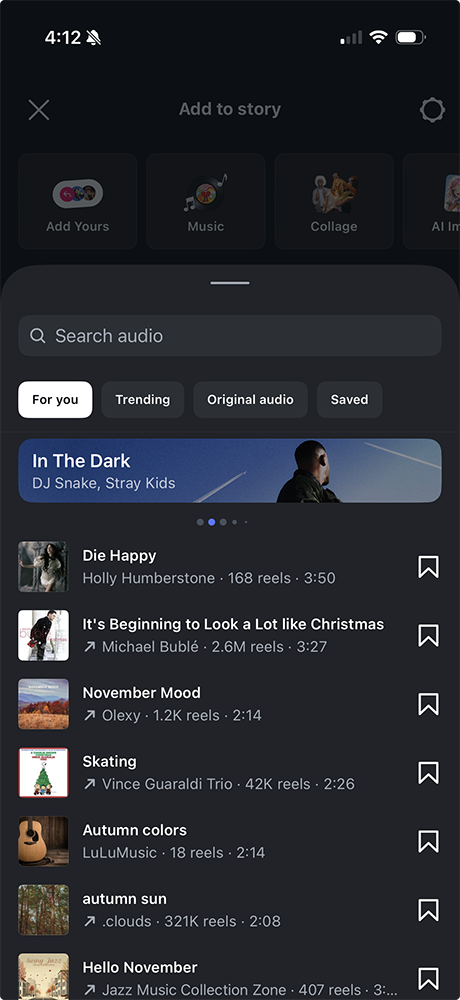
Tap “Music” from the sticker options. This opens Instagram’s music search.
Step 4: Search for Your Track
Type an artist name, song title, or browse by mood, genre, or what’s currently trending. Tap any track to preview it.
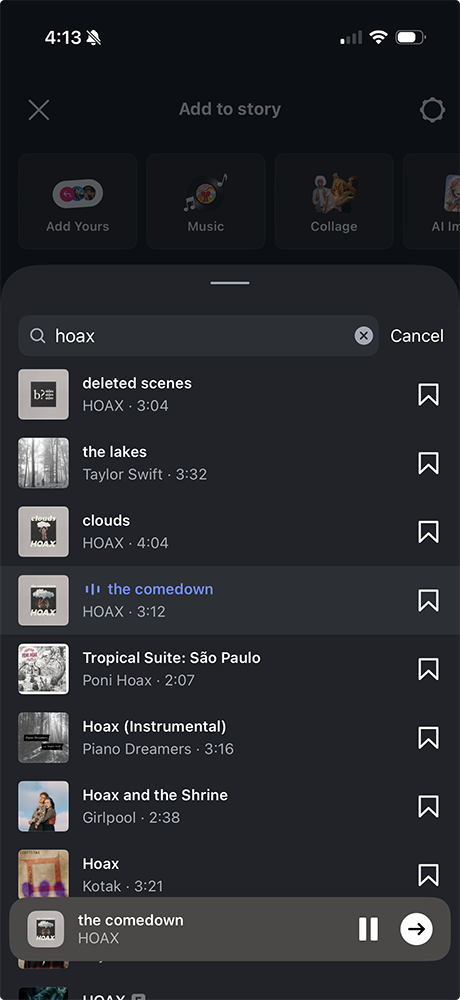
Step 5: Customize Your Selection
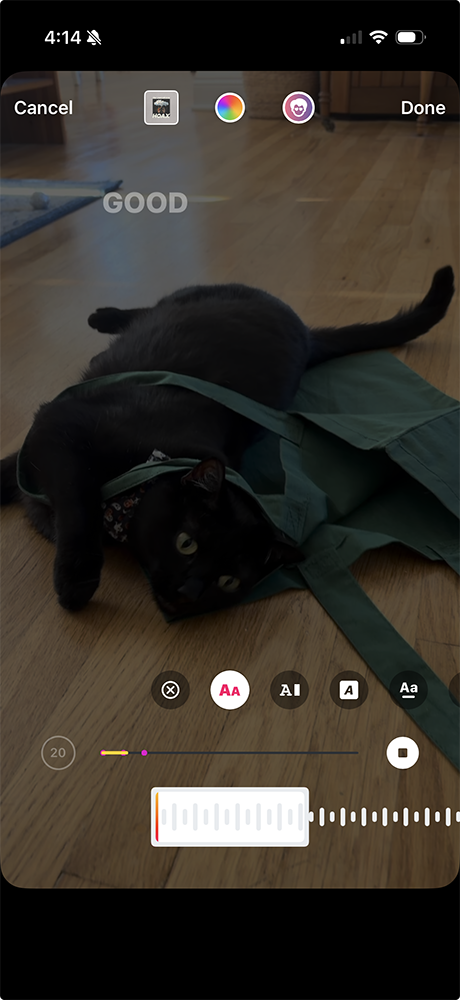
Drag the timeline slider to choose which part of the song plays. Adjust the sticker style (album artwork, lyrics, waveform) and drag the sticker anywhere on your screen.
Step 6: Set the Duration
The default clip length is 15 seconds. You can extend it up to the length of your story segment.
Step 5: Share Your Story
Tap “Your Story” to publish.
✅ Pro Tips for Using Music on Instagram Stories
- Tap the lyrics display to cycle through different text style options
- Using a currently trending song increases the chance your Story gets surfaced in the Explore tab
- Business accounts: the Music sticker may not appear or may show a restricted library – see the business accounts section below for solutions
How to Add Music to Instagram Reels
Reels are Instagram’s short-form video format and have the most robust audio options on the platform – including the full music library, trending sounds, original audio, and the ability to import your own files.
📋 Step-by-Step Guide: Adding Music to a Reel
Step 1: Start a New Reel
Tap the + icon and select “Reel,” or swipe right from your feed and tap “Reel” at the bottom.
Step 2: Add Music Before or After Recording
Tap the music note icon on the left panel to add a track before you record, or capture your clips first and add music during editing.
Step 3: Choose Your Audio
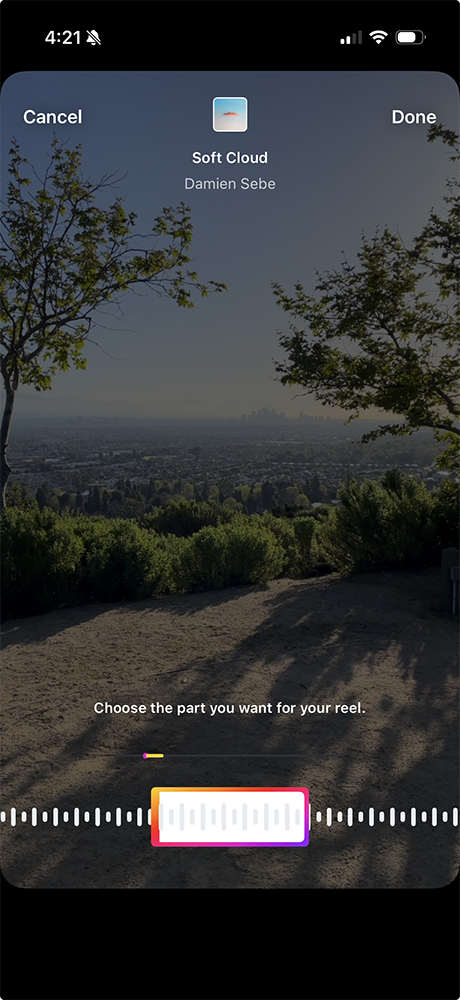
Search by song title or artist, or browse by trending, mood, or genre. Tap any track to preview it. To use your own audio file, tap Import to pull an MP3 or AAC from your device.
Step 4: Select Your Clip
Drag the playhead to pick which part of the song plays with your video. For longer songs, choose a specific 15-, 30-, or 60-second segment.
Step 5: Record or Edit Your Video
Record clips directly in the app or upload existing footage from your camera roll. Trim and arrange on the timeline.
Step 6: Adjust the Audio Mix
Use the volume slider to balance the music track against any original audio. Mute the original audio entirely if you want the music to be the only sound.
Step 6=7: Fine-Tune and Publish
Add a caption, hashtags, and cover image. Tap “Share” to publish.
⚡️ Maximizing Instagram Reels with Music
- Trending sounds – Reels using trending audio get wider distribution through the Explore page. Check the trending audio section when planning content.
- Original audio – If you build a distinctive hook or voiceover into your Reel, other creators can remix your audio – extending your reach with no additional effort.
- Beat sync – Aligning visual cuts to beats increases watch time. CapCut’s beat detection tool is useful for timing before you export to Instagram.
- 60-second audio cap – Instagram Reels can run up to 90 seconds, but the music clip selector caps at 60 seconds for most library tracks. If your Reel runs longer, import your own audio file (no cap applies to imported files) or plan your edit to work within 60 seconds of music.
How to Add Music to Instagram Posts
Standard Instagram feed posts (photos and carousels) don’t support native music. Here are the two standard workarounds.
☝️ Method 1: Add Music Before Uploading
Edit your video with music before it leaves your editor:
- Use a video editing app (CapCut, InShot, or Adobe Premiere) to add a licensed track to your video
- Adjust audio levels so the music balances against any spoken audio
- Export the finished video from your editor
- Upload the exported file to Instagram as a standard post
👉 For step-by-step instructions on adding a track in CapCut before export, see our CapCut music guide.
✌️ Method 2: Share a Reel as a Post
Create your content as a Reel with music added natively, then toggle “Also share to Feed” when you publish. The Reel appears as a video in your main grid with the music intact.
📌 Important Considerations for Feed Posts
Instagram’s audio detection system scans both natively-uploaded and pre-edited content. Adding music in a third-party editor before upload doesn’t bypass copyright detection – if the track isn’t properly licensed, the video will still be muted or removed after posting.
Instagram Music for Business Accounts
Instagram restricts access to its full commercial music library for business accounts. This is a licensing issue, not a bug – Instagram has negotiated music rights for personal and creator use, but those rights don’t automatically extend to commercial entities.
What this means by account type:
- Personal accounts: Full music library access
- Creator accounts: Full music library access
- Business accounts: Restricted to Instagram’s royalty-free library only (a much smaller selection than the full commercial library)
Option 1 – Import Your Own Licensed Audio
Business accounts can upload their own audio files directly into Reels. This is the right solution for most businesses: rather than relying on Instagram’s restricted library, you bring music you have a documented license for – and that license explicitly covers commercial use.
How it works:
- Download a licensed track to your device (Thematic tracks download as MP3s)
- When creating a Reel, tap the music note icon, then tap Import
- Select the audio file from your device
- Trim and adjust in the Reel editor as normal
This works on business accounts and gives you access to the full Thematic catalog – not just Instagram’s royalty-free selection.
Option 2 – Add Music in Your Video Editor Before Upload
Edit your video in CapCut, InShot, or another editor with a licensed track already embedded, then upload the finished file to Instagram. The music is part of the video file rather than added natively in Instagram, which bypasses the library restriction. As long as the track has a license covering Instagram, the video will be fine.
Note for Individual Creators (Not Actual Businesses)
If you’re an individual creator who set up a Business account but doesn’t actually need business-specific features (Facebook Business Manager, shopping catalog, certain third-party scheduling integrations), switching to a Creator account restores full music library access while keeping professional tools like Instagram Insights and branded content tags.
To switch: Settings → Account → Switch account type → Creator account.
For genuine business accounts, Options 1 and 2 are the better path.
How to Use Thematic Music on Instagram
Thematic is a free music platform for creators with a specific advantage for Instagram: every track comes with a license that covers Instagram explicitly – whether your account is personal, creator, or business – and the same license also covers TikTok, YouTube, Facebook, and more under a single download.
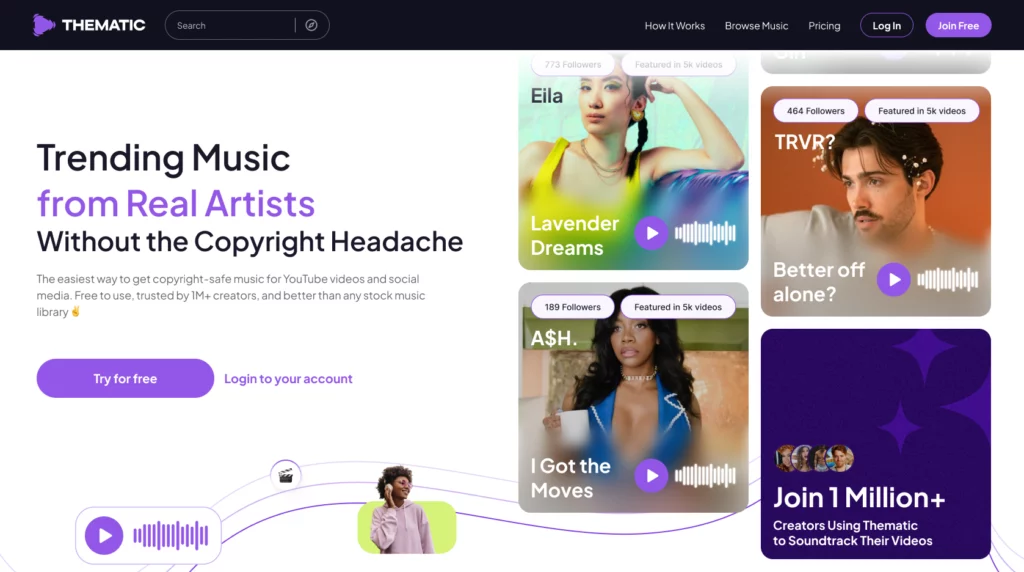
That matters for creators who make content across multiple platforms. A track you use in an Instagram Reel this week can go on TikTok tomorrow and YouTube next month, all under the same Thematic license. One download, one license link, no need to re-license or re-download for each platform.
How Thematic Licensing Works on Instagram
When you download a Thematic track and publish it in Instagram content, you add the Thematic license link to your post caption or bio. That link activates your license and creates a documented record that the audio is covered. One link per track, valid for every future video you make using that song across every supported platform.
For business accounts specifically: Thematic’s license covers commercial and brand use on the same terms as personal and creator use. No separate commercial tier, no upgrade required.
📋 Step-by-Step: Using a Thematic Track on Instagram
- Find a track – Go to Thematic and browse or search for music that fits your content. Filter by mood, genre, tempo, and more.
- Download the track – Click Download on the track page. The file saves to your device as an MP3.
- Import into your Reel – When creating a Reel, tap the music note icon and select Import, then choose the downloaded MP3 from your device.
- Trim and adjust – Use the audio editor to select which part of the track plays and set the volume balance.
- Add the license link – When you publish the post, add the Thematic license link to your caption or bio. This activates your license for this track across all supported platforms.
- Cross-post freely – The same track can go on TikTok, YouTube, and other supported platforms under the same license. No additional steps required for each platform.
Understanding Instagram’s Music Library
Instagram’s built-in music library contains millions of licensed tracks across genres, moods, and trending categories.
What’s Available in Instagram’s Music Library?
- Popular hits and chart music
- Emerging and independent artists
- Curated mood and genre playlists
- Trending sounds (updated in real time)
- Original audio from other creators
Regional Availability Limitations
Music licensing is territory-specific. Some tracks available in one country won’t appear in another. If a specific song doesn’t show up in your search, regional licensing is the most common reason. Using your own licensed music (from Thematic or another platform) sidesteps regional restrictions entirely – your license applies regardless of where you or your audience is located.
How Instagram Categorizes Music
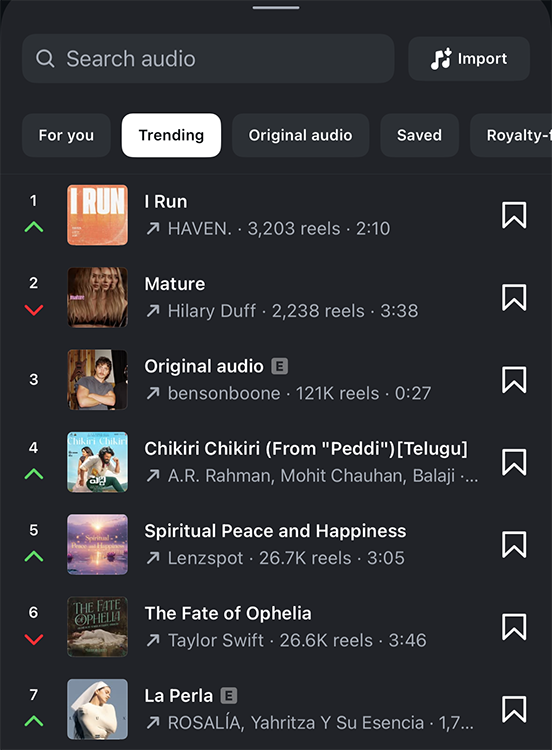
- Trending – tracks with high usage and engagement right now
- For You – personalized suggestions based on your content history
- Moods – filter by energy level and emotional tone
- Genres – browse by music category
- Themes – content-type categories (travel, cooking, fitness, etc.)
Copyright and Music on Instagram
Copyright protection exists to ensure musicians and creators are compensated for their work. When you add music to Instagram, you must respect their copyright policy to avoid penalties and maintain your account’s good standing.
When Instagram’s Built-In Music Is Safe
Tracks from Instagram’s built-in library are pre-licensed for Stories and Reels published through the Instagram app on personal and creator accounts. For that specific use case, they’re generally safe.
The catch: “cleared for Instagram” and “cleared for other platforms” are different things. A track licensed for Instagram use may not be licensed for YouTube. If you export an Instagram Reel and upload it to YouTube – or if you cross-post to any platform outside Instagram’s native sharing – you need a license that explicitly covers those platforms, not just Instagram.
The Retroactive Claim Problem
This is where creators most often get caught off guard. A track works fine on Instagram, so you cross-post it to YouTube. Months later, the rights holder updates their Content ID registration, and a video that seemed settled gets muted or claimed. Or the track’s licensing terms change after you’ve already posted.
The license that covered your Instagram post doesn’t follow the content to other platforms. Instagram’s music rights are negotiated by Instagram, for Instagram. They’re not yours to carry across platforms.
If you’re creating content you’ll ever publish anywhere beyond Instagram, using music with an explicit multi-platform license prevents this problem at the source. Thematic licenses cover Instagram, TikTok, YouTube, and more under a single download – the license is tied to your account, not Instagram’s platform terms, and it covers every platform you post to.
When You Need Your Own License
- Cross-posting to YouTube – Instagram’s library rights don’t transfer. You need a license that covers YouTube, or start with a track licensed for both.
- Business accounts running paid ads – Music in paid advertising has separate licensing requirements that Instagram’s standard library doesn’t cover.
- Sponsored content or client work – Content produced on behalf of a brand may require commercial licensing that goes beyond Instagram’s standard terms.
- Repurposing audio for podcasts – Instagram’s music rights are specific to video content published through the platform. They don’t cover audio syndication.
Troubleshooting: Why Can’t I Add Music to Instagram? 🚨
Most music issues on Instagram trace back to one of three causes: account type, regional licensing, or a stale app. Here’s how to identify which one you’re dealing with.
Why Can’t I Add Music to My Instagram Story?
Business account type – The most common cause. Business accounts have restricted access to Instagram’s commercial music library. See the business accounts section above for the three practical solutions.
Regional restrictions – Some tracks are licensed only in certain territories. If a specific song isn’t showing up, regional licensing is likely the reason.
Outdated app – Music features update regularly. If the interface looks different from what’s described here, check for an app update.
Account violations – Accounts with prior copyright violations may have music features temporarily restricted. Check your Account Status under Settings.
Why Is My Instagram Music Not Working?
- Connection issues – Music streaming in the editor requires a stable connection. Switch to WiFi and try again.
- Cache problems – Clear the Instagram app cache (Settings → Apps → Instagram → Clear Cache on Android; delete and reinstall on iOS) if the music tab is loading slowly or returning errors.
- Instagram outage – If music search returns no results across all tracks, check Instagram’s status page.
Why Was My Music Removed or Muted After Posting?
- Copyright detection – Instagram’s audio detection identified the track as unlicensed. Even with a license, if it isn’t properly documented, or the track was from Instagram’s library used on a business account, detection can still trigger.
- Account type change – If you switched from a personal or creator account to a business account after posting, the music rights that applied at the time of posting may no longer apply going forward.
- Regional licensing change – In rare cases, licensing in a specific territory changes after a track has already been used.
Tips for Choosing the Right Music for Instagram
The right track isn’t just one you like – it’s one that fits the content, the audience, and the moment. These four factors narrow the choice faster than browsing the full library.
Match Music to Content Purpose
- Educational or tutorial content: Low-energy background instrumentals that don’t compete with your voice
- High-energy or fitness content: Upbeat, fast-tempo tracks that match your editing pace
- Emotional or personal content: Melodic tracks with space – avoid busy arrangements
- Comedy or trending content: Use the audio that’s already trending – joining the trend is the point
Consider Your Audience Demographics
Music preference varies significantly by age and content type. Check your Instagram Insights for audience demographics before committing to a genre. A track that resonates with a 24-year-old lifestyle audience won’t necessarily connect with a professional B2B account’s followers.
Trending Audio vs. Niche Audio
Trending audio gives you algorithmic lift – Instagram’s recommendation system favors content using sounds that are currently spreading across the platform. But trending sounds also create a crowded field.
Niche audio, matched closely to your specific content type, often performs better with your existing audience even without Explore pickup.
Both approaches have their place depending on whether you’re building reach or deepening engagement.
Test and Track Performance
Instagram Insights shows metrics per post. Track which content with music consistently outperforms your average watch time and saves – the audio type often correlates. Give yourself 8-10 posts before drawing conclusions.
FAQs: Adding Music to Instagram
Common questions about adding music to Instagram – covering account restrictions, copyright, platform compatibility, and how to use Thematic.
Can you add music to Instagram photos?
Standard photo posts don’t support native music. To add music to a photo post, either convert the photo to a short video clip in a tool like CapCut (with a licensed music track embedded) before uploading, or create a Reel using the photo and add music natively, then share the Reel to your feed.
Why don’t I have the music feature on Instagram?
The most common reason is account type. Instagram business accounts have restricted access to the commercial music library. Switching to a Creator account (Settings → Account → Switch account type) restores full access. Other causes: outdated app version, regional restrictions, or account violations.
How do I add my own music to Instagram?
When creating a Reel, tap the music note icon and select Import. Choose an MP3 or AAC file from your device. The file is added to your Reel’s audio layer, which you can trim and adjust the same way you’d handle a library track. This works on all account types, including business accounts.
Can I use Spotify music on Instagram?
No. Spotify tracks are DRM-protected and can’t be exported as audio files. Using a Spotify track by playing it in the background during recording is not a licensed use and may result in your content being muted. Use licensed tracks from a platform like Thematic instead.
What happens if I use copyrighted music on Instagram?
Instagram’s audio detection system scans uploaded content. If it identifies a track as unlicensed, the video will be muted (audio removed) or removed entirely. Repeated violations can result in reduced reach, restricted features, or account suspension. Getting audio muted doesn’t resolve the underlying license issue – it just removes the content from the video.
How long can music be on Instagram Reels?
Instagram Reels can run up to 90 seconds. The music clip selector in Instagram’s library caps at 60 seconds for most tracks. If your Reel is longer than 60 seconds, import your own audio file (no cap applies to imported files) or blend two audio clips on the timeline.
Do I need to credit music on Instagram?
For music from Instagram’s built-in library, no – the music sticker automatically attributes the track. For music imported from an external platform, requirements depend on the source. Thematic requires a license link in your caption or bio – one link per track, which covers all future uses of that song across all supported platforms.
Can business accounts use Instagram music?
Business accounts have restricted access to Instagram’s commercial music library. The practical solutions are: (1) switch to a Creator account to restore full library access, (2) import your own licensed audio files directly into Reels using the Import option, or (3) add music to your video in a separate editor before uploading. Options 2 and 3 work regardless of account type.
What music can I use on Instagram without getting muted?
Tracks from Instagram’s built-in library are pre-cleared for personal and creator accounts posting through the native app. For business accounts, or for content you’ll publish outside of Instagram, use music with an explicit multi-platform license. Thematic tracks are licensed for Instagram, TikTok, YouTube, and more – one download covers all platforms, and the license doesn’t depend on Instagram’s library permissions.
Can I use Thematic music on Instagram?
Yes. Download any Thematic track as an MP3, then import it into your Reel using the Import option in the audio picker. Add the Thematic license link to your post caption or bio to activate your license. The same license covers TikTok, YouTube, Instagram, Facebook, and more – you don’t need to download the track separately for each platform.
Does Thematic work for Instagram business accounts?
Yes. Thematic’s license covers business and brand use on the same terms as personal and creator use – no separate commercial tier required. Import the track directly into your Reel using the Import option, add the license link to your caption or bio, and you’re covered regardless of account type.
Can I use the same music on Instagram and TikTok?
Yes, if the license covers both platforms. Instagram’s built-in library tracks are only licensed for Instagram – they don’t transfer to TikTok or YouTube. Thematic licenses explicitly cover Instagram, TikTok, YouTube, and other major platforms under a single download. If you’re creating content for multiple platforms, starting with a Thematic track means the same music clears everywhere without separate permissions.
Get Started with Copyright-Safe Music for Instagram
The step-by-step is the easy part. The part that trips creators up – especially those running business accounts or cross-posting to multiple platforms – is music licensing. Instagram’s built-in library is convenient, but it’s platform-specific, it’s restricted for business accounts, and it doesn’t travel to YouTube or TikTok.
Thematic solves this at the source. Every track is licensed for Instagram, TikTok, YouTube, and more – one download, one license link in your caption, covered across every platform you post to. Free to start, no subscription required, same terms for solo creators and brands alike.
More Guides for Adding Music to Videos
Looking for instructions for another editing app or platform? Here are step-by-step guides for adding music in other popular tools:
- How to Add Music to CapCut – mobile, desktop, and web
- How to Add Music to iMovie
- How to Add Music to Adobe Premiere
- How to Add Music to DaVinci Resolve
- How to Add Music to Canva
- How to Add Music to TikTok – TikTok editor, third-party apps, and business accounts
- Music for TikTok – copyright-safe options for TikTok creators
Looking for more free creator tools and resources? Visit Thematic’s Creator Toolkit for additional resources on creating content – including thumbnail and channel art templates, best practices, and of course, great royalty free songs to use in your videos for free with Thematic.